What you need
The parts
- A Raspberry Pi 3 or 4. Other models have not been tried yet.
- An SD card of 8 GB or more, with Raspberry Pi OS "trixie" on it. The Lite version (without a desktop) is enough: PaperPi has no use for a desktop. Raspberry Pi Imager writes it to the card; in its settings, set the Wi-Fi network, a user name and password, and switch on SSH (logging in to the Pi from another computer), so you can install PaperPi without a keyboard and screen on the Pi.
- A power supply made for your Pi: the official one is the safe choice (5.1 V, 2.5 A for a Pi 3; 5.1 V, 3 A with USB-C for a Pi 4). A weak supply can make the Pi restart while the screen draws.
- An e-paper screen, one of these two kinds:
- A screen with Waveshare's IT8951 board, such as the Waveshare 9.7", 6", 7.8", 10.3" or 13.3". The IT8951 board is the small board that comes with the screen and drives it; it shows 16 shades of gray.
- One of Waveshare's small screens on their e-Paper HAT (a board that sits on the Pi's pins), from 1.02" to 13.3": black and white, gray, three colours or full colour.
- Internet for the Pi during the install, and for plugins that fetch data (weather, calendar, comics).
Every model PaperPi knows, and which ones were tried on a real screen: Supported screens.
Switch the Pi off first
Connect or disconnect the screen only while the Pi is off and its power cable is out. Plugging a board onto the pins of a running Pi can damage both.
Hold the Pi the right way
The pictures below show the Pi's 40 pins (its GPIO header: the double row of pins along one edge) from above, with the pins on the right and the HDMI ports (for a monitor) on the left, as in this picture. Pin 1 is then the top left pin; underneath the board, its solder pad is square, the others are round.
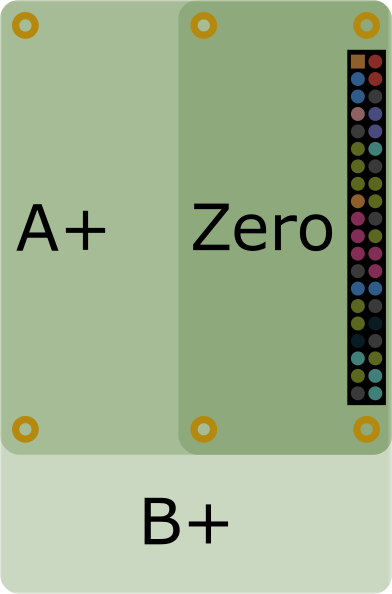
A screen with the IT8951 board
- If the board has a switch for the kind of connection, set it to SPI; Waveshare's page for your board shows where it is.
- Connect the screen's flat ribbon cable to the IT8951 board: open the connector's lock, slide the cable in as far as it goes, and close the lock.
- Connect the board to the Pi: plug it straight onto the Pi's 40 pins, or use jumper wires (single wires with a plug at each end), pin by pin as in the picture below.
- Write down the VCOM number printed on the screen's ribbon cable, for example
-1.90. Each screen has its own, and the install asks for it.
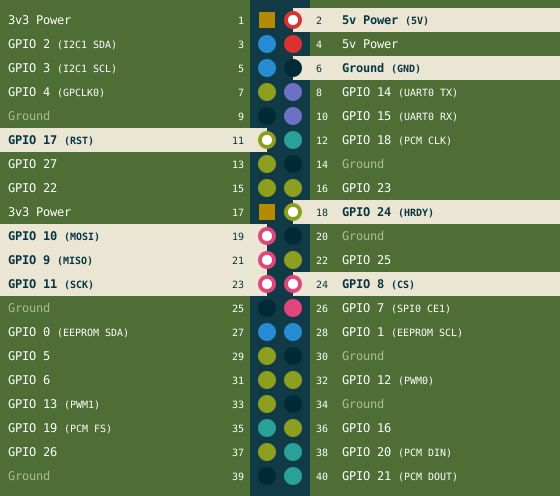
| Board pin | Pi pin | What it is |
|---|---|---|
| 5V | 2 | power |
| GND | 6 | ground |
| MISO | 21 (GPIO 9) | data from the screen (SPI) |
| MOSI | 19 (GPIO 10) | data to the screen (SPI) |
| SCK | 23 (GPIO 11) | the SPI clock |
| CS | 24 (GPIO 8) | chip select: "this data is for you" |
| RST | 11 (GPIO 17) | reset |
| HRDY | 18 (GPIO 24) | busy: the board says when it is ready |
SPI is the data line to the screen; the install switches it on. "GPIO 17" is the pin's name for programs, "pin 11" its place on the header. The other pins stay free, so a HiFiBerry sound card can be used on the same Pi.
A small screen on the e-Paper HAT
- Connect the screen's ribbon cable to the HAT.
- Set the HAT's two small switches: Display Config to B for most screens (Waveshare's page for your screen says which one), and Interface Config to 0.
- Plug the HAT onto the Pi's 40 pins, or use jumper wires, pin by pin as in the picture below.
More about these screens, and what to know about each kind: Waveshare screens.
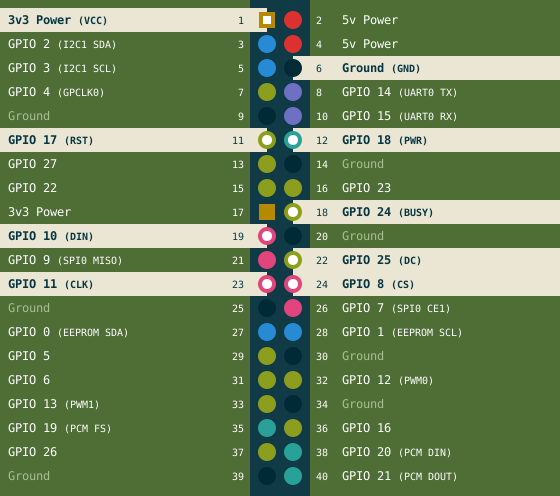
| HAT pin | Pi pin | What it is |
|---|---|---|
| VCC | 1 | power, 3.3 V |
| GND | 6 | ground |
| DIN | 19 (GPIO 10) | data to the screen (SPI) |
| CLK | 23 (GPIO 11) | the SPI clock |
| CS | 24 (GPIO 8) | chip select: "this data is for you" |
| DC | 22 (GPIO 25) | data or command |
| RST | 11 (GPIO 17) | reset |
| BUSY | 18 (GPIO 24) | busy: the screen says when it is ready |
| PWR | 12 (GPIO 18) | switches the screen's power (newer HATs only) |
GPIO 18 is also used by HiFiBerry sound cards, so a HiFiBerry and the e-Paper HAT can't be used on the same Pi for now (more).
Next: Install.
The pin pictures follow the layout of pinout.xyz, and the picture of the Pi is pinout.xyz's, under the CC BY-SA 4.0 license.